Understanding data

Discover how to easily read the data your device and sensor provide.
Two phones, each displaying a different screen from the FreeStyle Libre app.


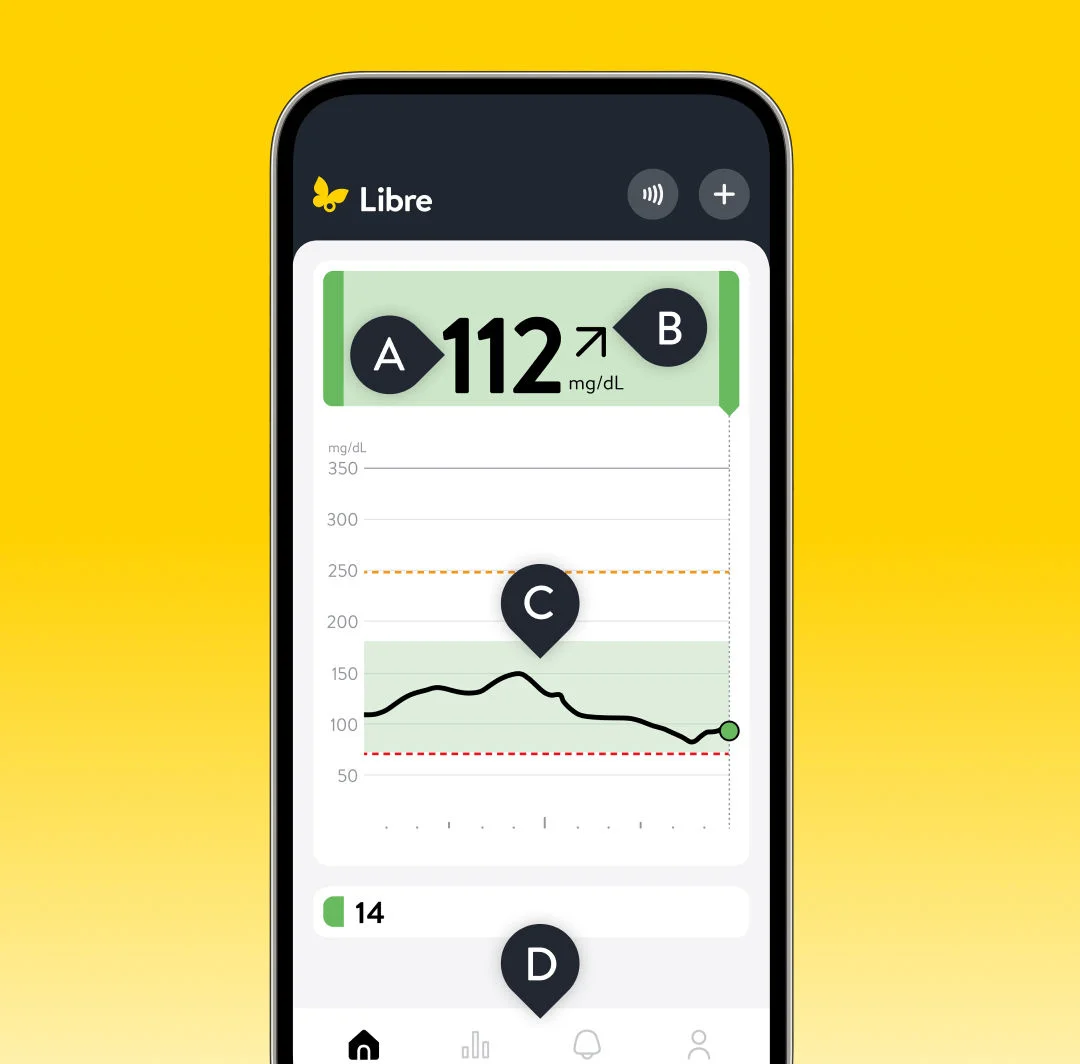
Getting to know your home screen.

Your home screen shows you current glucose readings, trend arrows, glucose history, and notes you can come back to. 
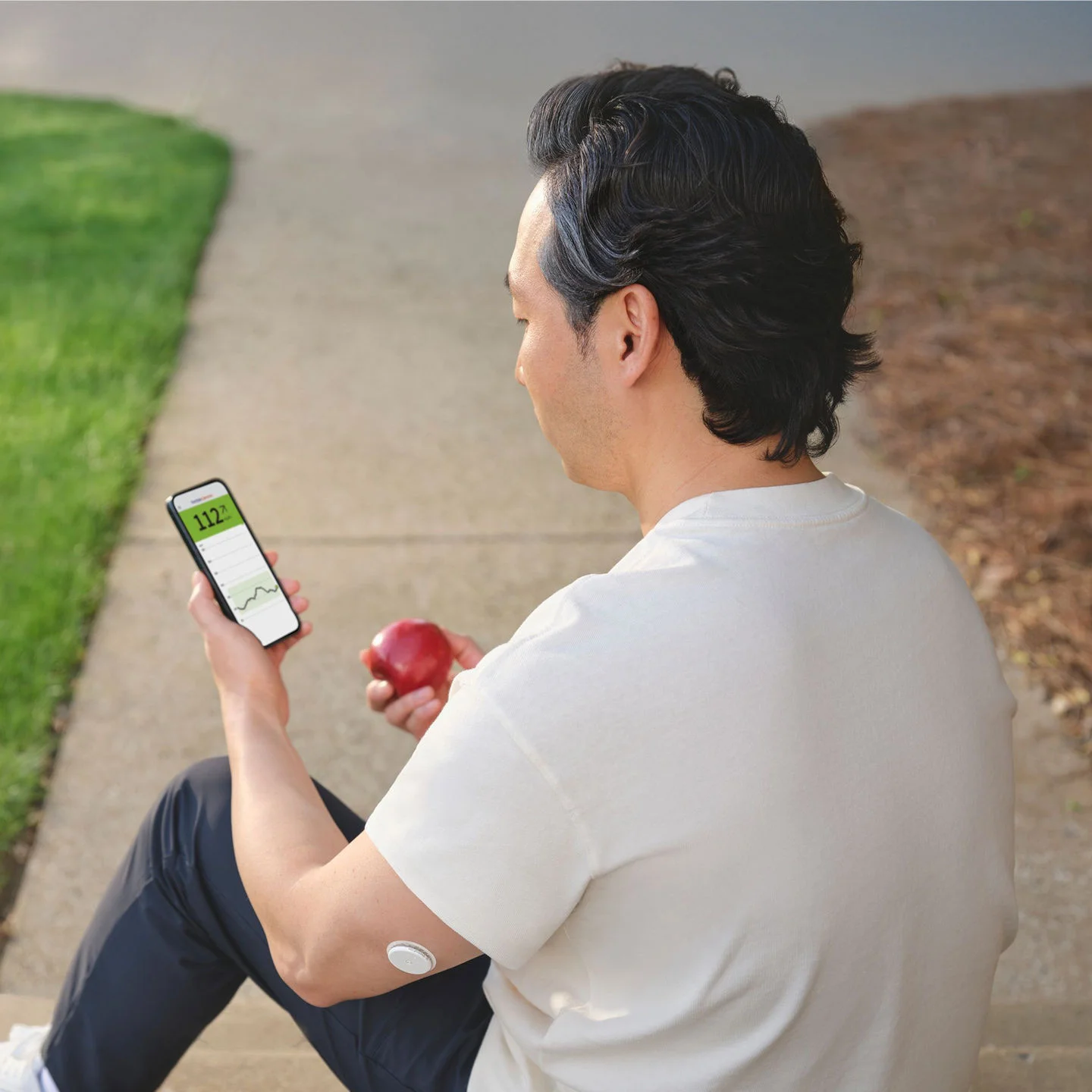
A woman wearing a sensor showing her glucose data on her phone with her husband.

Monitor glucose trends and patterns to show how your levels change over time.

  • Current glucose reading

    Measured every minute, the color you see lets you 
know if you’re in range73.

  • Trend arrow

    Indicates the direction your glucose is heading and how quickly it’s rising or falling.

  • Glucose history

    Continuous glucose graph shows how your levels have changed over the last 8 or 12 hours.

  • Add note

    Track food, insulin use, movement, and other events.

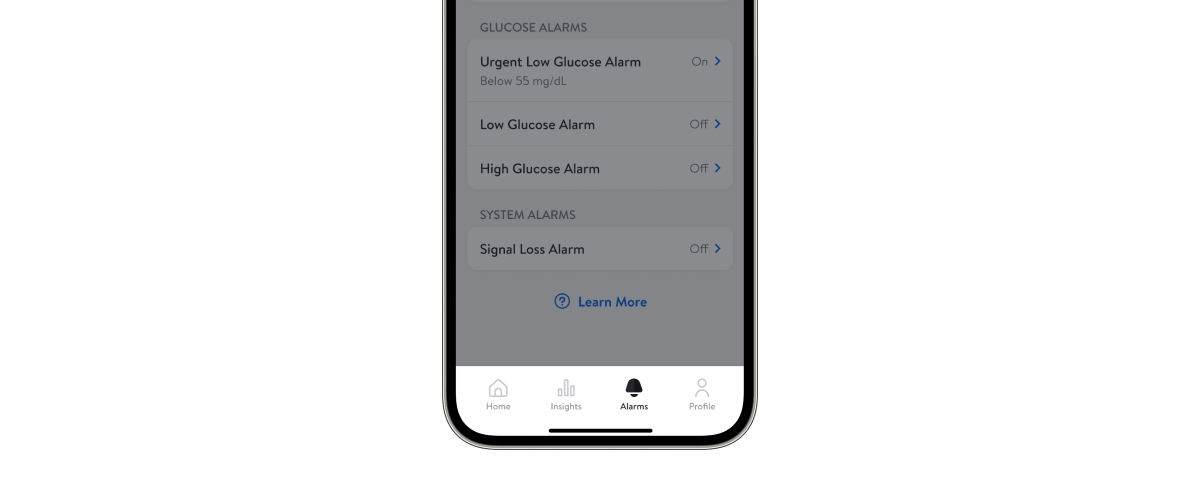
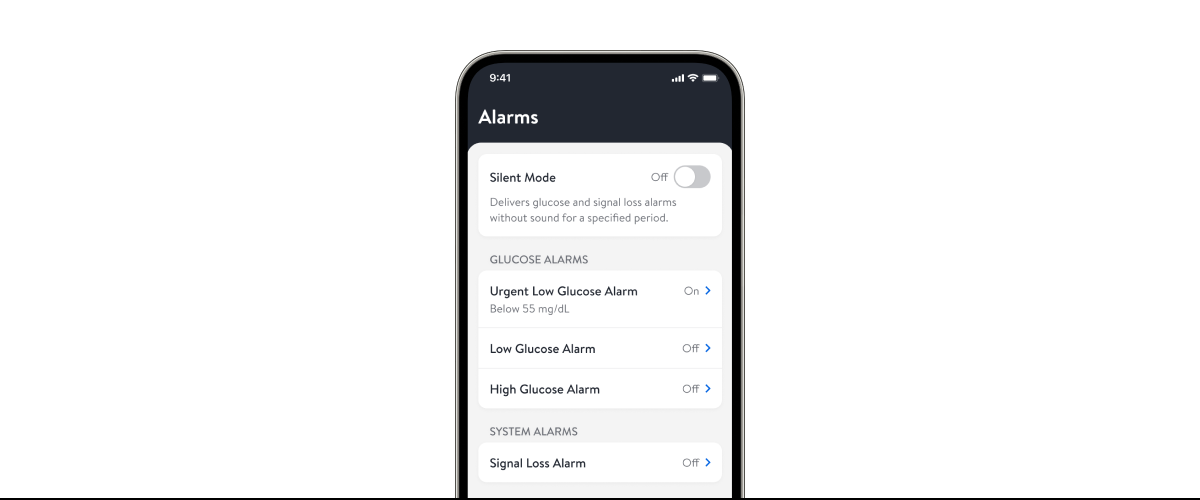
Customizing your alarms11.

Real-time alarms11 let you know the minute your glucose is too low or too high.
A woman wearing a Freestyle Libre sensor balancing on an exercise ball while smiling broadly.

Step 1
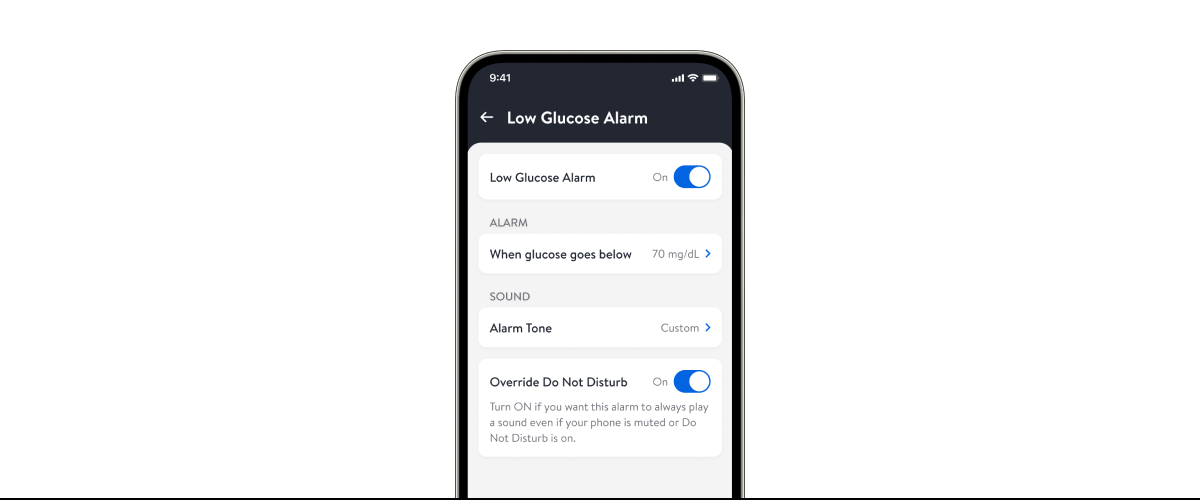
On the app28, go to the Main Menu and tap Alarms.
A woman wearing a Freestyle Libre sensor balancing on an exercise ball while smiling broadly.

Step 2
On the app28, select the optional alarm you want to change and turn on: Low, High, Signal Loss.

 FreeStyle Libre 2 reader showing a glucose reading

Step 3
On the app28, select Override Do Not Disturb if you want an alarm to display even when your smartphone is muted or Do Not Disturb is enabled.

Understanding your glucose alarms11.

When your glucose goes above or below the threshold you set, alarms11 give you a gentle nudge. Alarms are customizable and can be adjusted to be silenced when you need quiet. 

Low glucose alarms.

A woman wearing a sensor showing her glucose data on her phone with her husband.


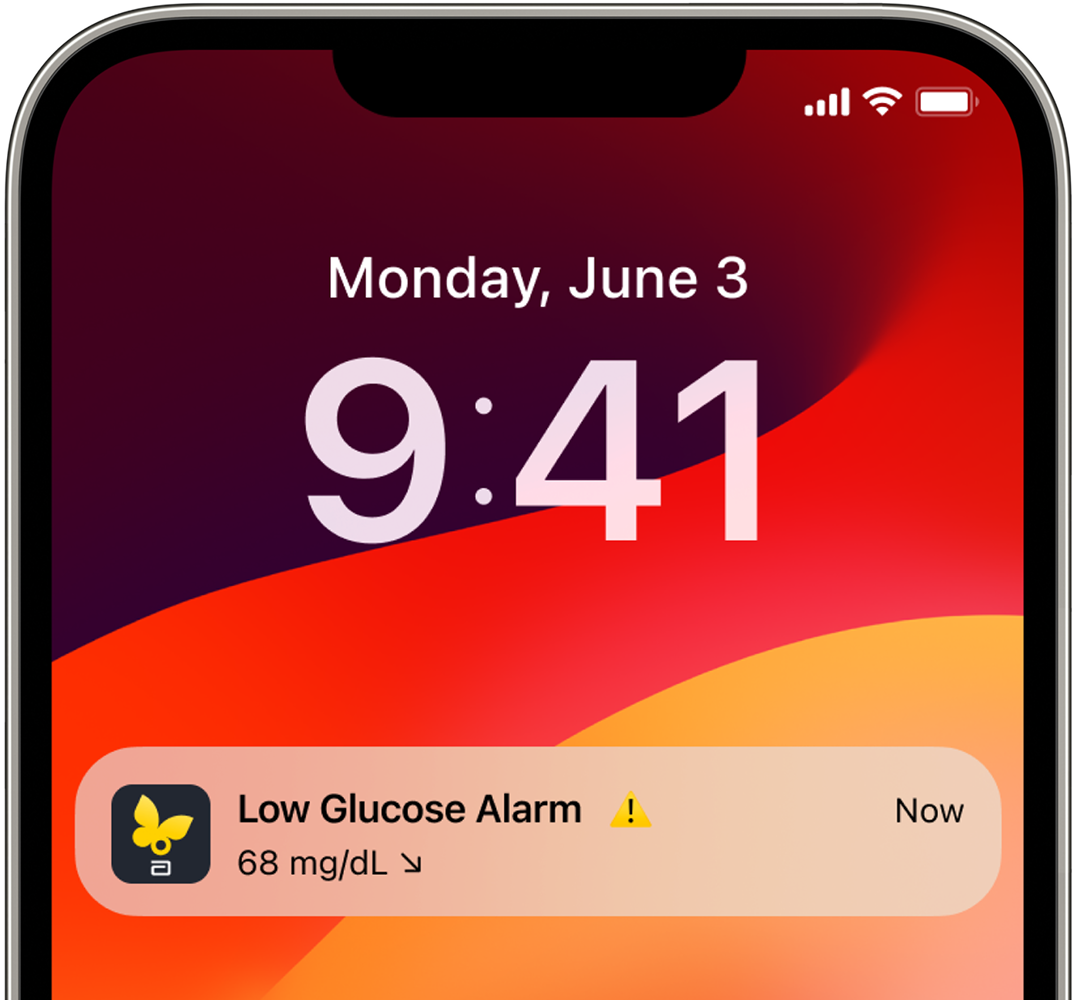
Low glucose alarms sound11,28 when your levels fall below 60mg/dL [3.3mmol/L] / 70 mg/dL [3.9 mmol/L]14. 

If your levels fall below 55mg/dL [3.1 mmol/L], the Urgent Low Glucose Alarm will sound.

High glucose alarms.

A woman wearing a sensor showing her glucose data on her phone with her husband.


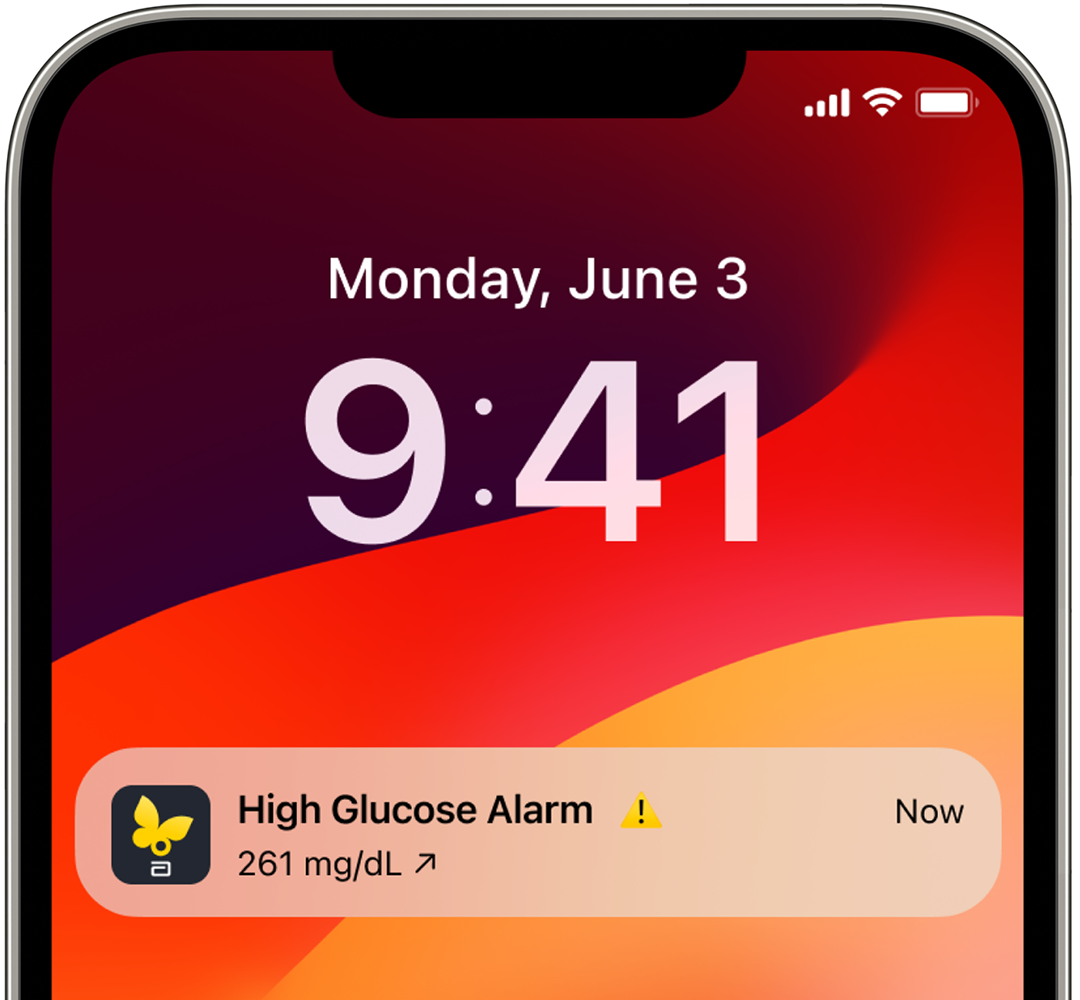
High glucose alarms appear11,28 when your levels rise above [200mg/dL [11.1mmol/L]] 250 mg/dL [13.9 mmol/L]14. 

If your levels rise above 400mg/dL [22.2mmol/L] or you are out of range, you’ll get a High Glucose Alarm.

Accessing all of your reports.

FreeStyle Libre app28 also provides reports of data over time that can be used to get the bigger picture of your glucose history. To navigate to these reports, go to the All Reports tab. There, you’ll find Time in Range, Average Glucose, Low Glucose Events, Daily Patterns, and Glucose Management Indicator (GMI) graphs. 
A phone displaying the FreeStyle Libre app displaying four markers: A, B, C, and D showing different real time glucose monitoring information.

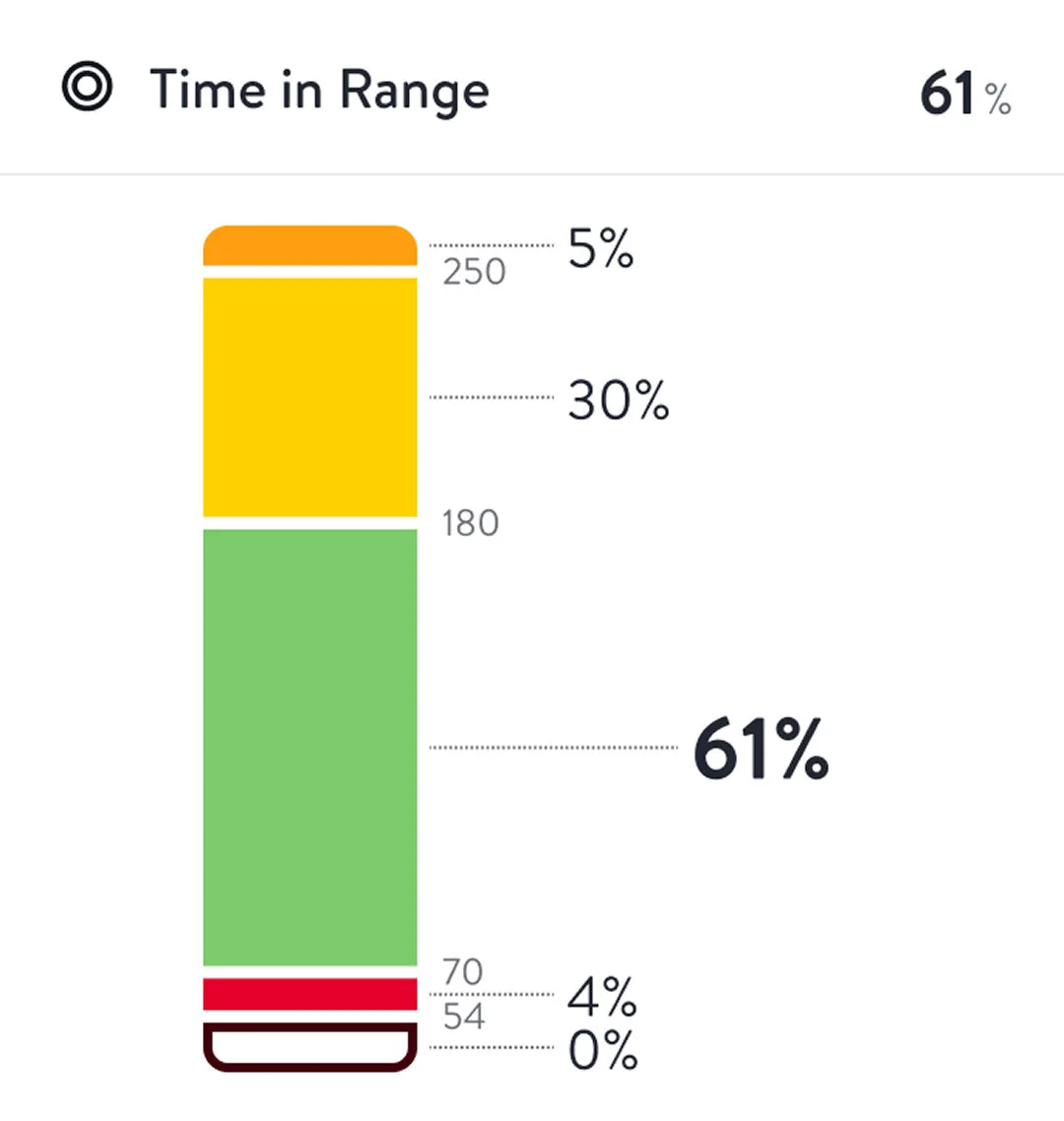
Time in Ranges

Your Time in Ranges report shows how much of your day your glucose stayed above, below, or in your target range. The percentages in the graph tell you exactly how much time you spent steady. The standard graph is based on a Target Range of 70-180 mg/dL55.

A phone displaying the FreStyle Libre app with three icons labeled A, B, and c showing how much time is spent in each glucose range.

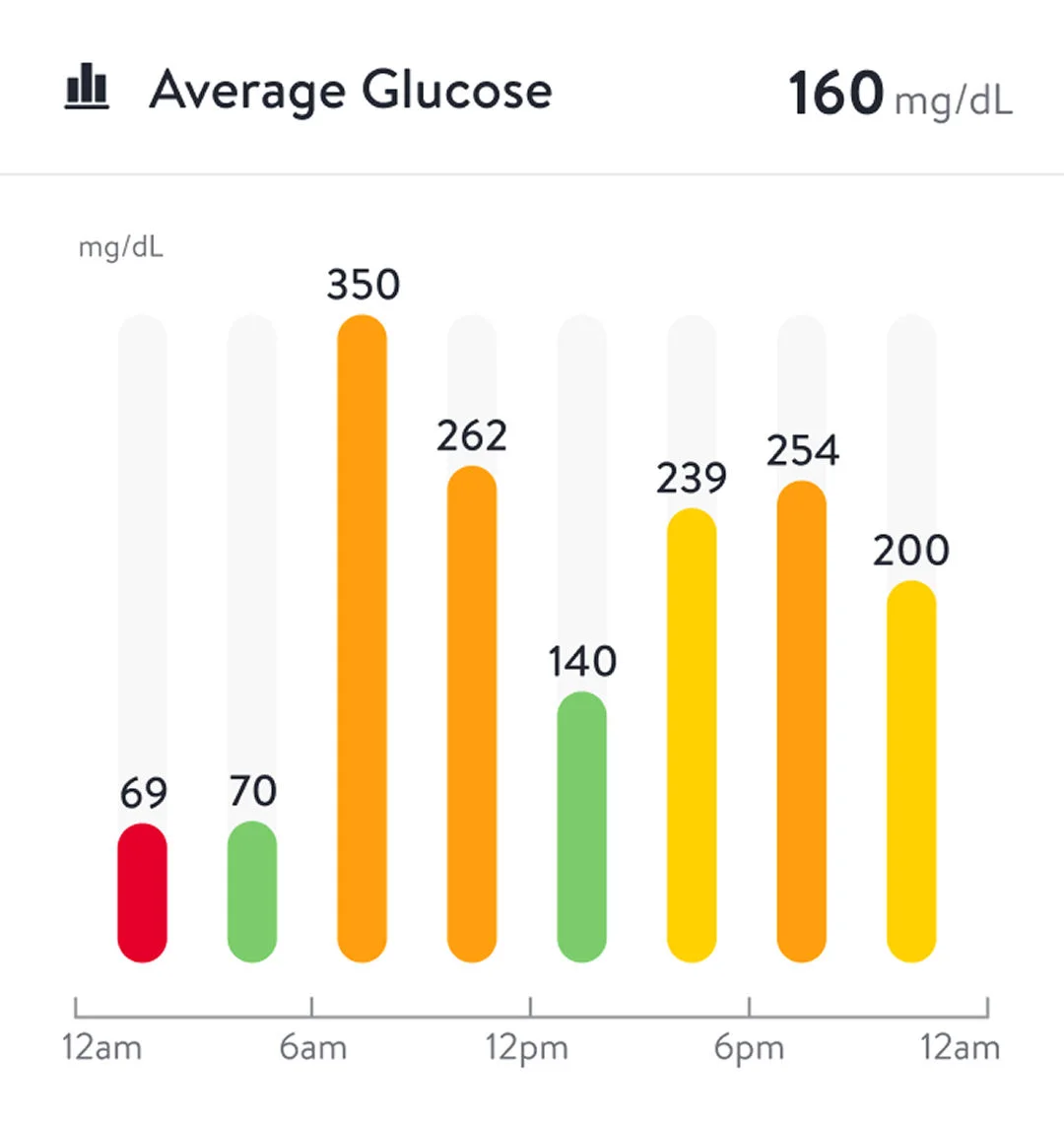
Average Glucose

See the overall average of your sensor readings—plus how those averages shift throughout the day. 

Your main average appears at the top. Below, see how your levels tend to look in the morning, afternoon, evening, and overnight. 

The colors help you read your averages at a glance:

  • Green means you’re in range. 
  • Yellow, orange, or red show times when your glucose moved above or below your target.
A phone displaying the FreStyle Libre app showing a screen that explains the glucose trend arrows.

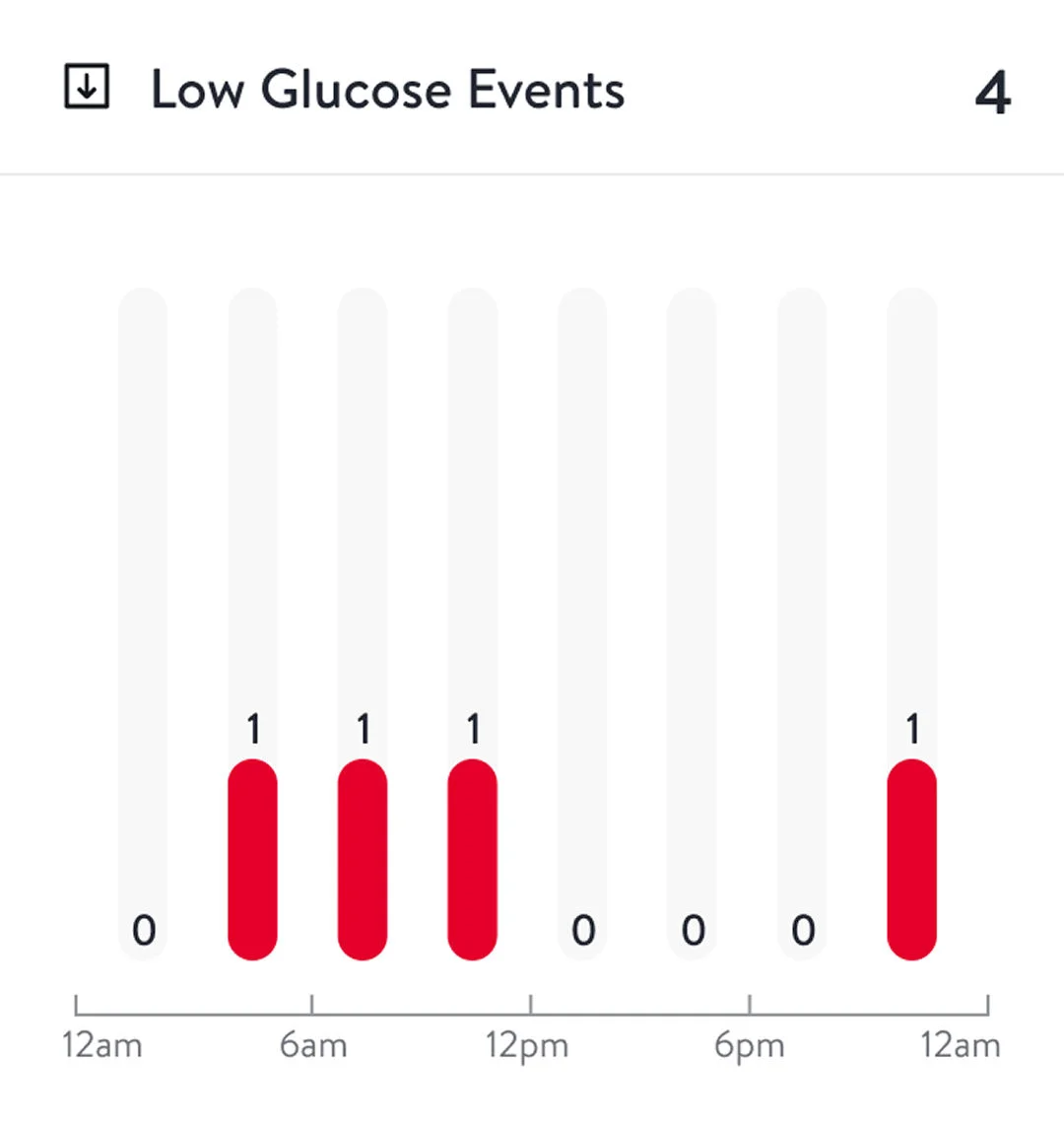
Low Glucose Events

The Low Glucose Events chart displays times when your glucose dropped below your set levels over a period of time.

A phone displaying the FreStyle Libre app showing a screen that explains the glucose trend arrows.

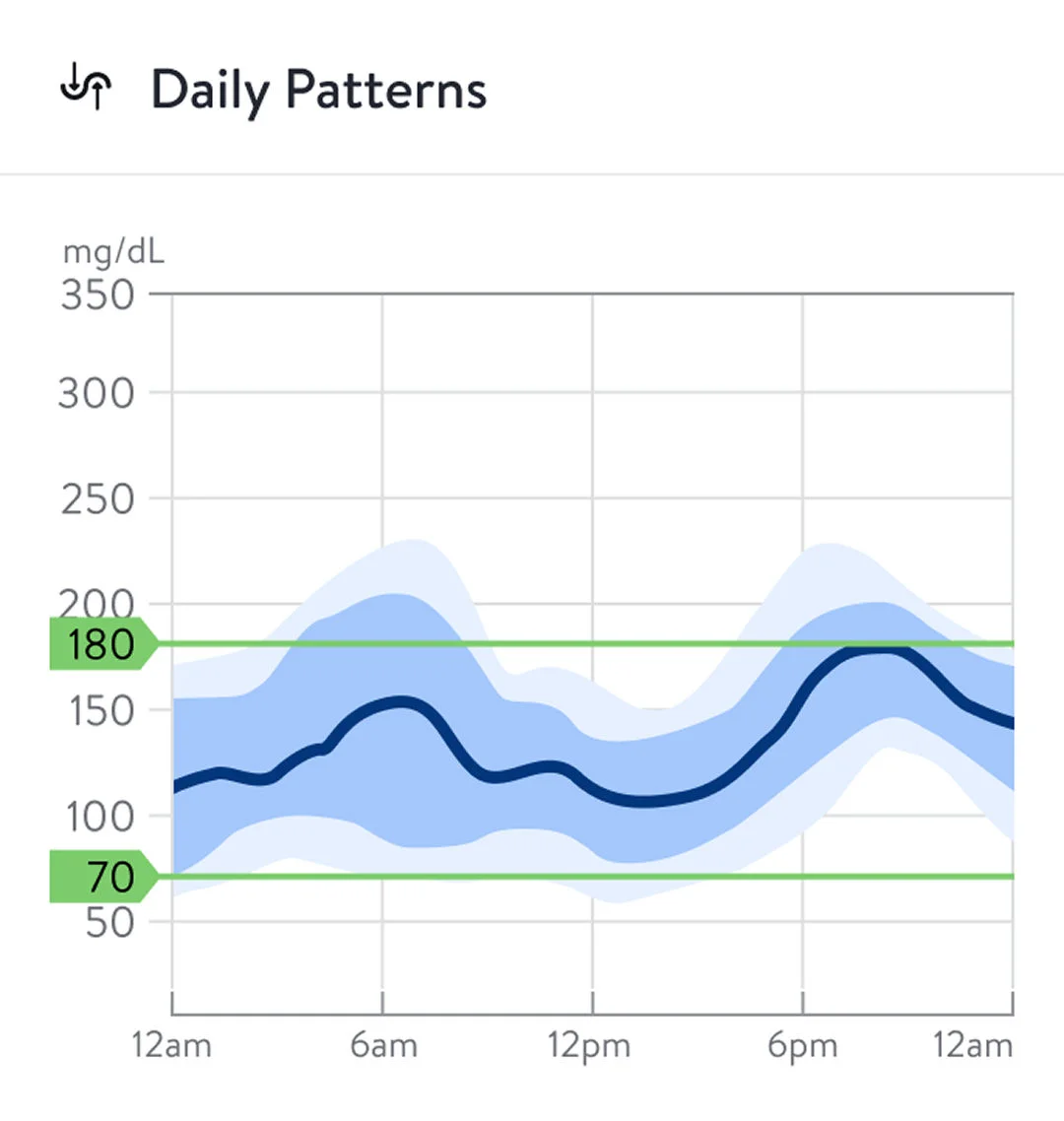
Daily Patterns

Your Daily Patterns graph helps you see the glucose patterns throughout a typical day. Here’s how to read it:

  • The thick line shows the midpoint of your readings. 
  • The inner shaded band shows where most of your readings land.
  • The outer shaded band shows the full range of your readings.
A phone displaying the FreStyle Libre app showing a screen that explains the glucose trend arrows.

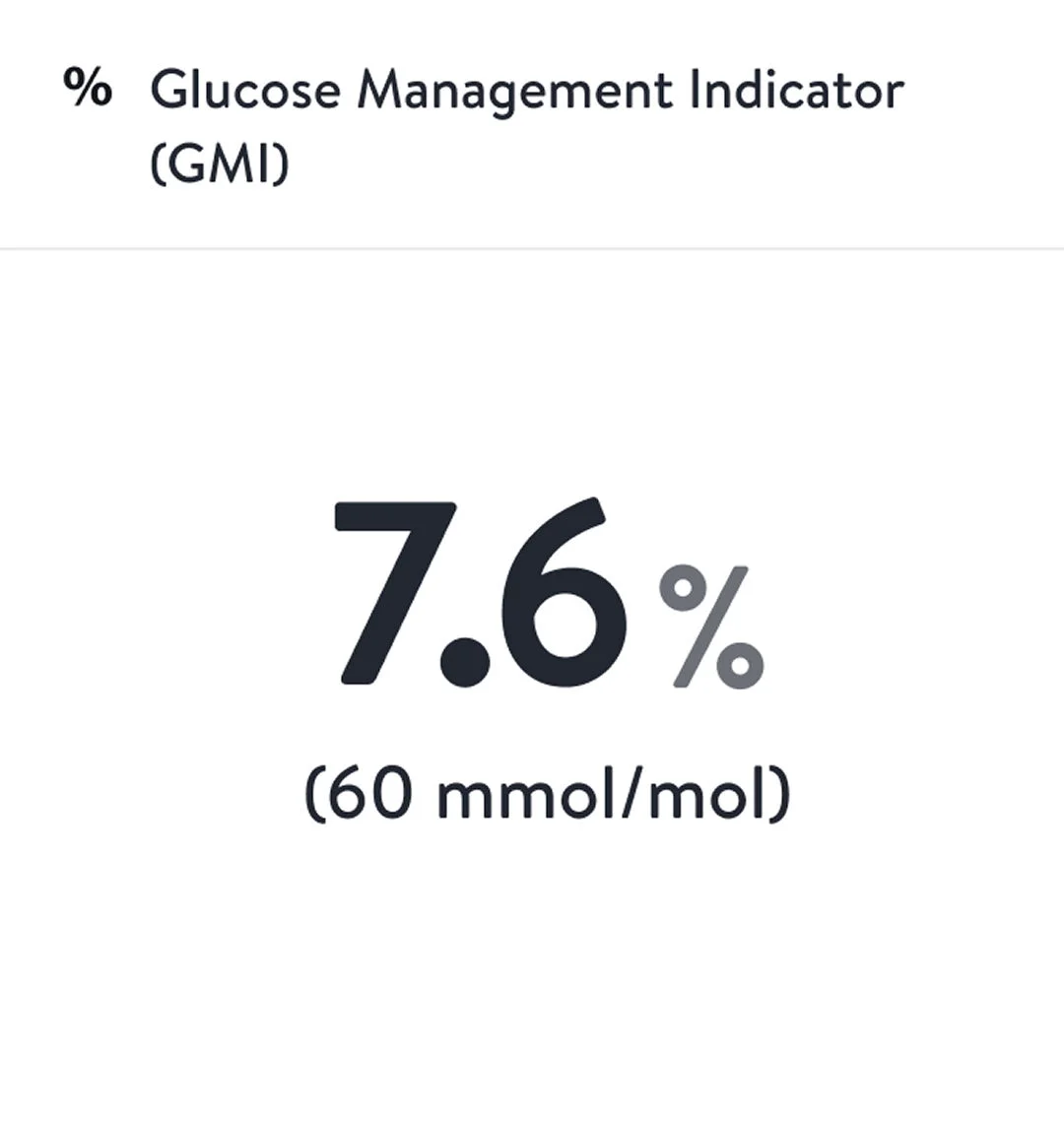
Glucose Management Indicator (GMI)

Your GMI gives you an estimate of what your [A1c/HbA1c] might look like based on your average sensor glucose. It uses your day-to-day readings to show how steady your levels have been over time. 

The percentage you see reflects that estimate and helps you track your long-term progress.

       Watch our short guides for more help.

Applying and removing your sensor
Step-by-step for applying your sensor.
Using your sensor
How to use your sensor.
Understanding your home screen
Reading your app’s home screen.

FAQs

Have questions? We’ve got answers to help.

A Signal Loss alarm11 notifies you when the sensor has not communicated with the Libre app28 for 20 minutes.

Signal loss could be caused by the sensor being too far away from your smartphone. For FreeStyle Libre 2 sensors: over 6 meters (20 ft) For FreeStyle Libre 3 sensors: 10 meters (33 ft). Additionally, the Signal Loss Alarm11 can occur if Bluetooth is turned off, or another issue such as an error or problem with your sensor.

The Libre 2 app28 updates with your glucose information every minute from the FreeStyle Libre 2 sensor. On the app’s home screen, you can view your up-to-the-minute glucose reading, trend arrow, and continuous 8-hour graph.

The Libre 3 app28 updates with your glucose information every minute from the FreeStyle Libre 3 sensor. On the app’s home screen, you can view your up-to-the-minute glucose reading, trend arrow, and continuous 12-hour graph.

The following information can be found on the Daily Graph:

  • Date banner with back and forward arrows to change the graph date or to open the date picker
  • Information icon to learn more about the Daily Graph
  • 24-hour view of glucose data
  • Note icon(s) displayed for logged notes
  • The Logbook

Looking for more guidance?

ADC-94335 v2.0